

Add Shortcut to Website on Desktop
Method 1:
Using either Internet Explorer, Chrome, or Firefox browsers.Step 1
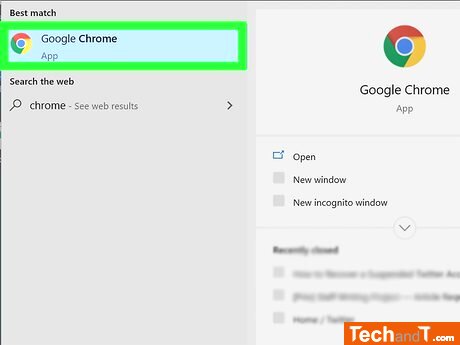
To execute this, start up any of the three web browsers: Internet Explorer, Chrome, or Firefox. However, if you are using Microsoft Edge, you will have to launch Internet Explorer instead since Edge does not provide this capability. Generally, the particular browser from which you create the shortcut will be the one opening the link, no matter what browser is set as a default by you.
Step 2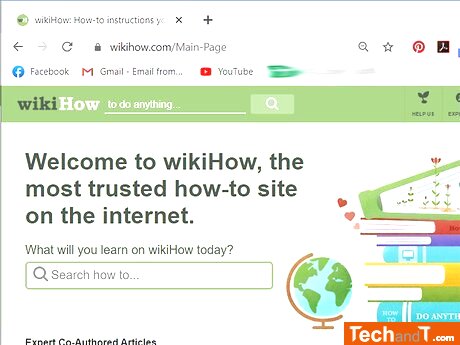
Head to the webpage that you'd like to create a shortcut for. Make sure you get to the right page, because you can only make a shortcut for this page. You might be asked to enter your username and password if the site usually requires it in order to access it.
Book a service online
Step 3
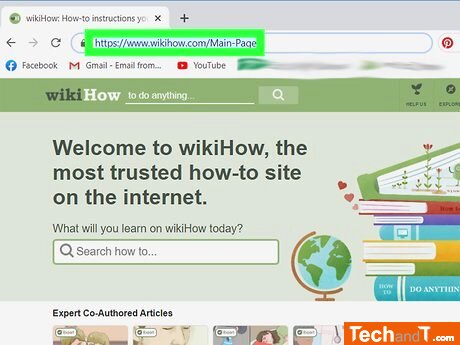
Resize your browser window, so it is not taking up the whole screen. This will enable you to view your desktop while completing the task.
Step 4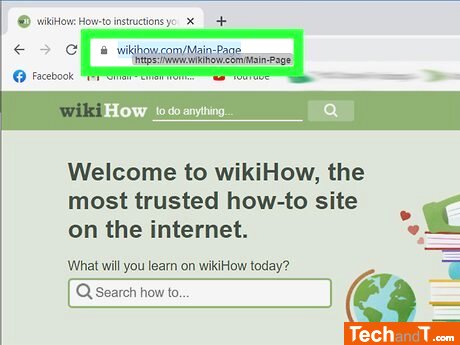
While within the address bar, press down on the icon of the site and move your cursor. An outline of the object will appear as it is shifted from one spot to another.
Step 5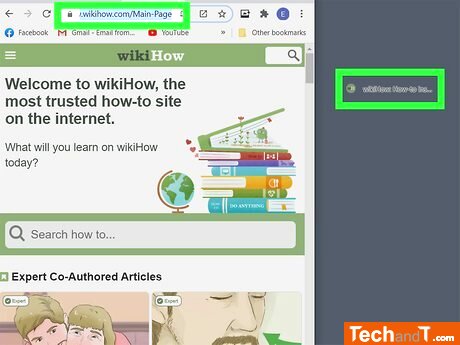
A link to the website will appear on your desktop with the website's title as the file name, and if the website has an icon, it will display this icon.
Step 6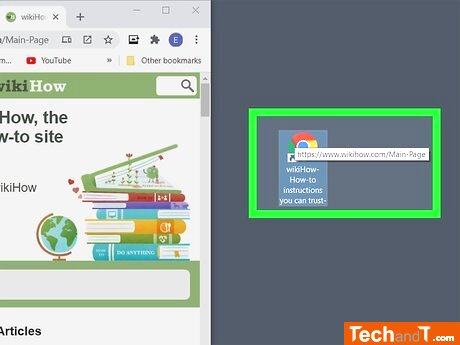
If a shortcut was created using Internet Explorer, it will always open in that program. However, if the shortcut was made using Firefox, it will open in the browser your machine is set to use by default when you double-click on it.
TimeScale:
Approx. Time Required: 12 Minutes