

Set Up Static IP Address on Computer
Method 1:
Locating Your Addresses on WindowsStep 1
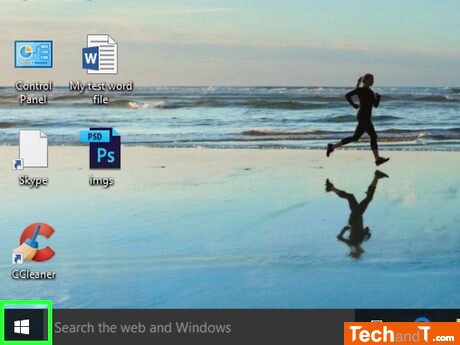
To open Start click on the Windows logo in the bottom-left corner of the screen. This will cause the Start menu to appear.
Step 2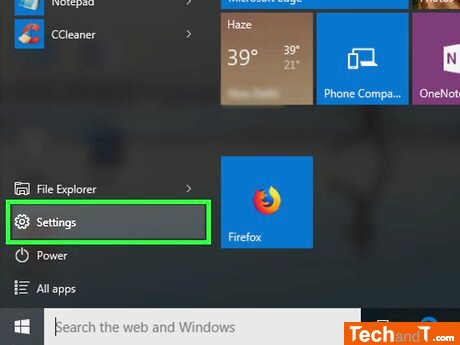
To access your Windows Settings, go to the Start menu and click the gear-shaped icon located in the lower-left corner.
Book a service online
Step 3
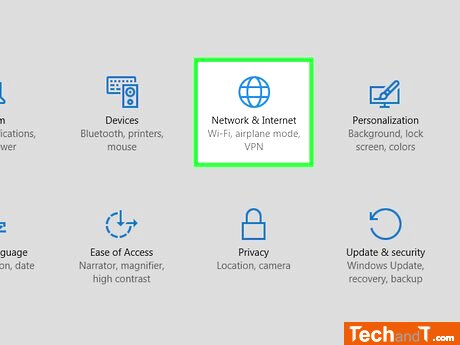
Click the Network & Internet icon in the middle of the Settings window to access its features. The image below shows a screenshot of a Windows icon that was edited by me. The license for this image is Public Domain.
Step 4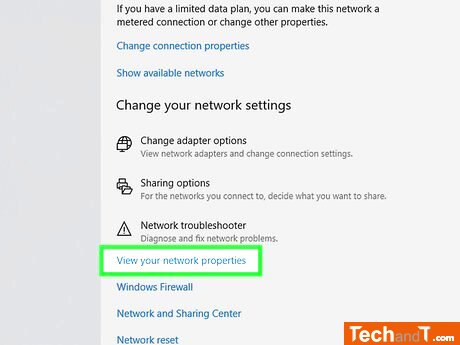
At the bottom of the page, click View your network properties. If the link isn't there, scroll down or click the About tab in the upper-left corner of the window.
Step 5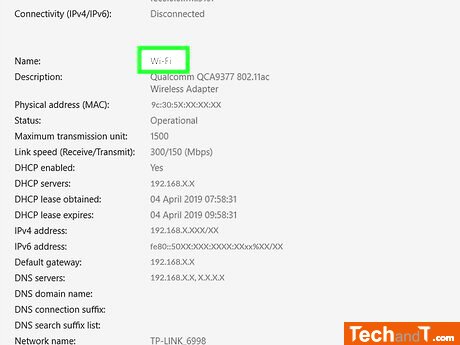
Go to the Wi-Fi section, which is near the bottom of the page. You will be able to observe a list of details about your Wi-Fi connection.
Step 6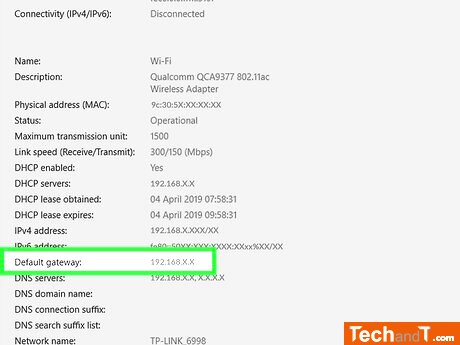
Enter the address displayed next to Default gateway in a web browser to access your router's page.
Step 7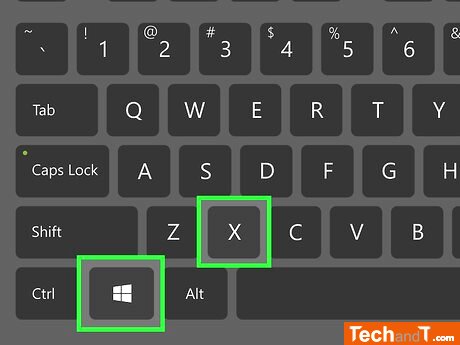
Press ⊞ Win+X to open the advanced Start menu. Alternatively, you can right-click the Start icon in the lower-left corner of the screen.
Step 8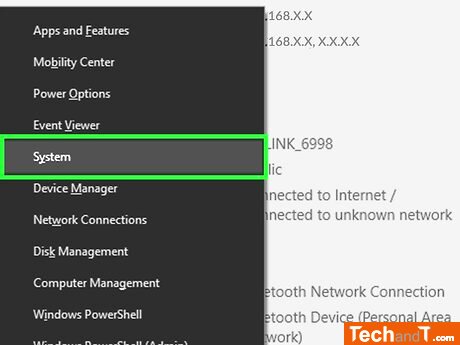
To open a window with your Windows computer's information, select System from the advanced Start menu.
Step 9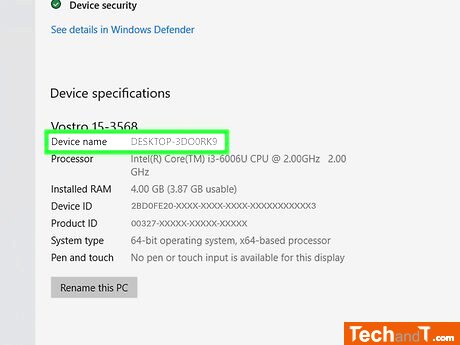
After you have located the Device name (which usually consists of a random set of letters and numbers) in the middle of the page, take note of it. Once this is done, you can proceed with assigning a static IP address to the device.
TimeScale:
Approx. Time Required: 18 Minutes