
Manage Authorized Sites in Google
Method 1:
Regulating which websites and apps can be accessed in Google.Step 1
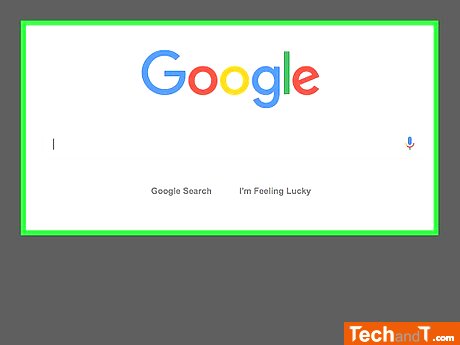
Check out Google.
Step 2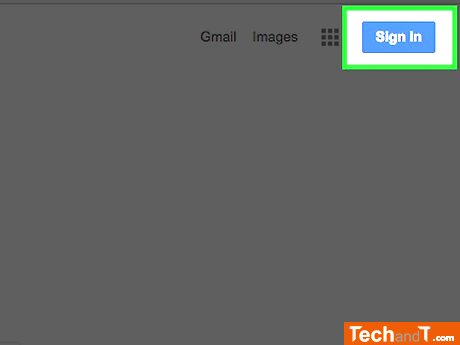
To log in, press the Sign in button and enter your email address and password. If you are already logged in, no need to do this.
Book a service online
Step 3
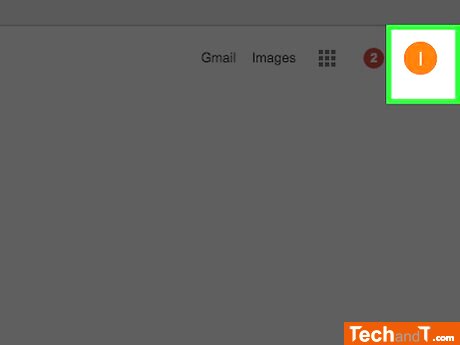
In the upper right hand corner of your screen, press the Google icon or letter that represents you.
Step 4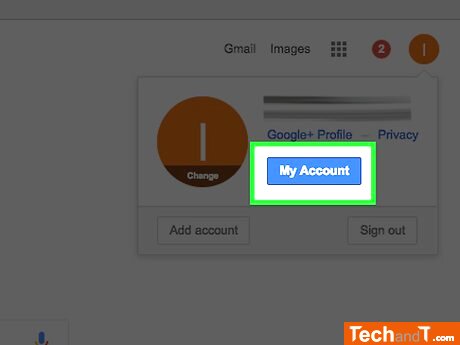
Press the “My account” button.
Step 5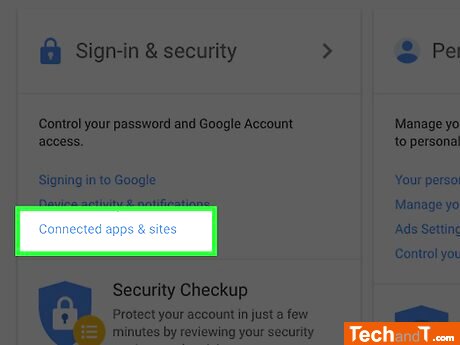
Go to the first box titled “Sign-in & security” and select the option “Connected apps and sites.
Step 6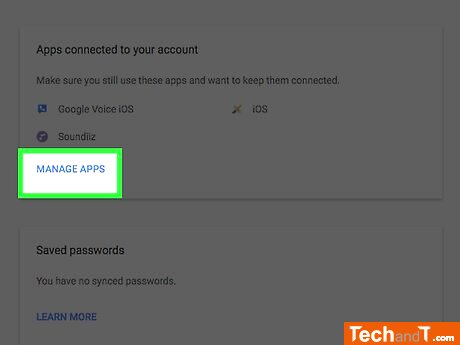
Go to the list of linked applications. Scroll down to the Connected apps & sites area. Look at the Apps connected to your account box and select the Manage apps link. This will direct you to the authorized apps page. If no third-party websites or apps have been allowed access to your information, it should say, Currently there are no third party sites authorized to access your account.
Step 7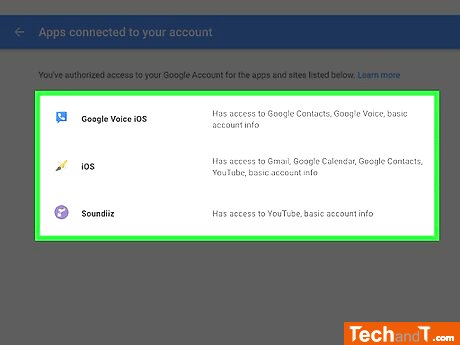
Organize the apps you’ve given permission to. Click the app name to get specifics on the details it has the capacity to access.
Step 8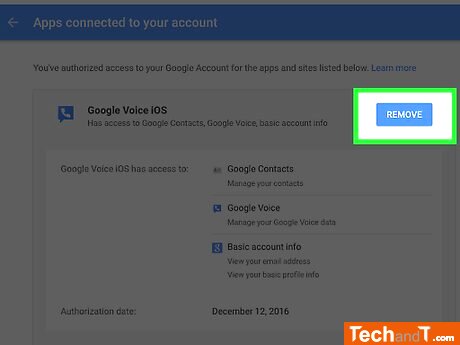
If you wish to take away authorization to a particular app, press the “Remove” tab. When you are certain that you desire to revoke the access, click “OK”. Otherwise, press “Cancel”.
TimeScale:
Approx. Time Required: 16 Minutes