
Two Internet Connections Combined
Method 1:
Speedify can be employed on Windows and Mac computers to help boost internet speeds.Step 1
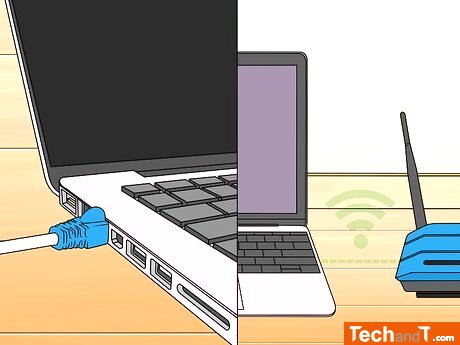
If you are connecting to the internet via a wired connection, plug an Ethernet cable into the Ethernet port of your computer and an open LAN port on your modem or router. If you would rather use a Wi-Fi connection, click on the Wi-Fi icon (three arching lines) from the menu bar (Mac) or taskbar (Windows). Then choose your Wi-Fi network and input your wireless passkey.
Step 2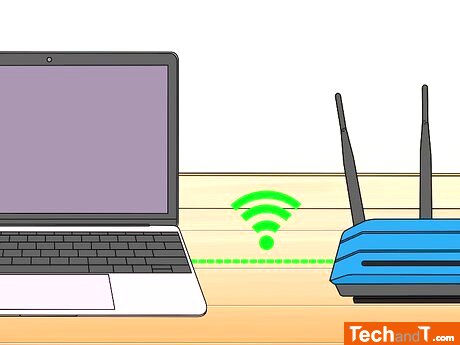
If you are wanting to set up a second internet connection, you can do so by connecting your computer to your Wi-Fi network and then connecting with an Ethernet port or by purchasing a USB Ethernet adapter or a wireless USB adapter. If connecting two wireless connections or two wired connections or your computer does not have an Ethernet port, a USB Ethernet adapter or a wireless USB adapter is necessary. Consequently, if using a Mac, it will be essential to ensure the adapter you purchase is compatible with MacOS and to install additional drivers so the wireless USB adapter can be used.
Book a service online
Step 3
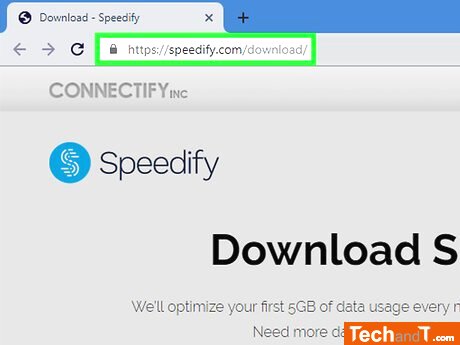
To access https://speedify.com/download, open up any web browser on either a PC or Mac.
Step 4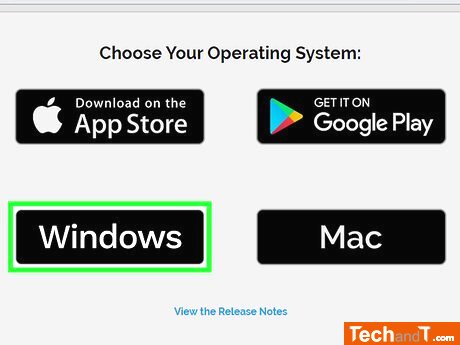
To download the right version for your operating system, click Windows if you're using Windows, or Mac if you're using MacOS.
Step 5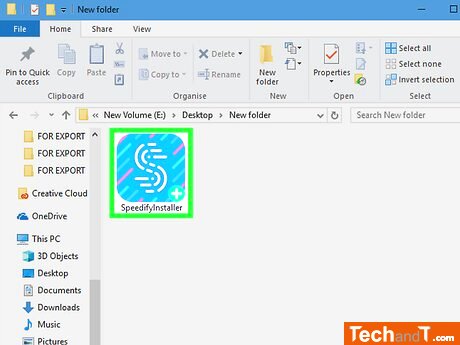
After Speedify has finished downloading, open the installation file by double-clicking either SpeedifyInstaller.exe (if you're using Windows) or SpeedifyInstaller.dmg (if you're using Mac). Your downloaded files can usually be found in the Downloads folder or browser window. Executing the installation will then complete the setup of Speedify.
Step 6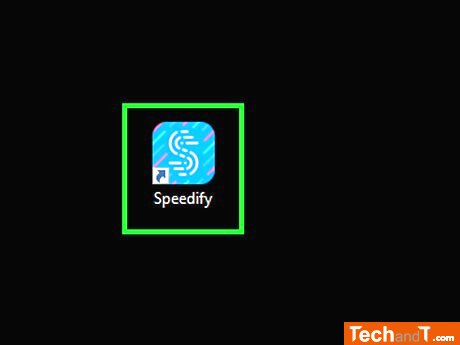
After you install Speedify, it will open on its own. If you need to open it manually, on Windows, go to the Windows Start menu in the bottom-left corner. On Mac, find the icon that looks like a magnifying glass in the top-right corner. Type 'Speedify' and click the blue app with an S in the icon.
Step 7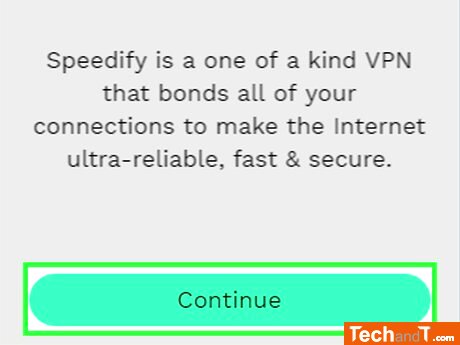
Press the green button found at the bottom of the screen marked Continue.
Step 8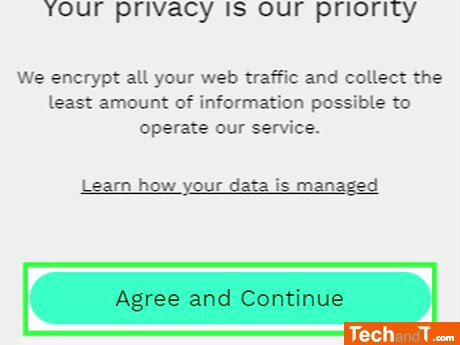
Press the green button in the middle of the page labeled Agree and Continue which shows that you accept the privacy policies.
Step 9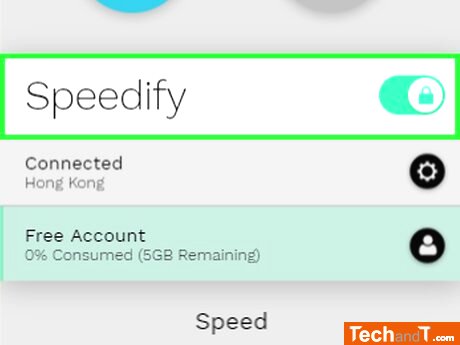
To use Speedify, click the toggle switch next to it. Once it opens, the networks you are connected to will be listed on the top. If the toggle switch is green, then your connections are being successfully combined. If you have a free Speedify account, you are able to use up to 5GB a month. Alternatively, you can purchase the unlimited plan for $8.99 every month, or $49.99 yearly.
TimeScale:
Approx. Time Required: 18 Minutes