

Making Header Size Adjustments in CSS
Method 1:
The size of the text can be adjusted using the CSS font-size property.Step 1
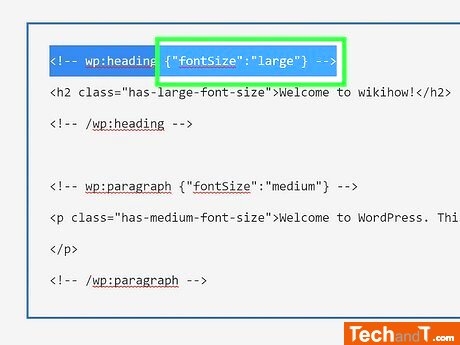
of measurement to use for your header font size. You can apply different values to the font-size property in CSS that will either be relative to the size of other elements or index according to a specific determined unit such as pixels (px), points (pt), inches (in), etc. Relative units are more friendly to accessible web design since they automatically adjust the size as the window is resized. Whereas, absolute units provide more exact control over font size but can be a problem for responsiveness as the page is magnified.
Step 2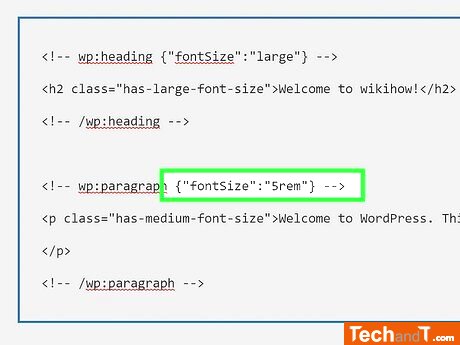
Using font-size: 5.0vw in your H1 tag would make the size of the H1 tag 5% of the viewport's width. To keep your font sizes consistent across different screen sizes, you should always use relative units like em, rem, vh, and vw.
Book a service online
Step 3
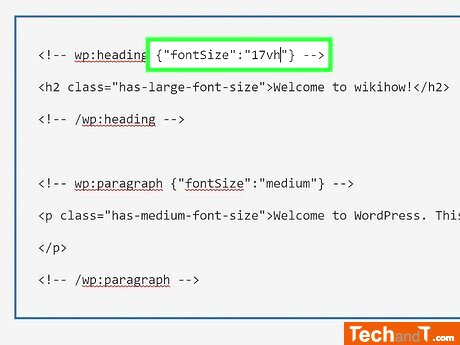
Using the font-size property, you can change the size of your header tags by determining a unit of measurement and adding the corresponding element to your website's CSS file or WordPress CSS editor. For instance, if you want the H1 to be 20% of the viewport size, the code would look like this: h1 { font-size: 20vh; } and the code to make the following H2 17% would be h2 { font-size: 17vh; }.
Step 4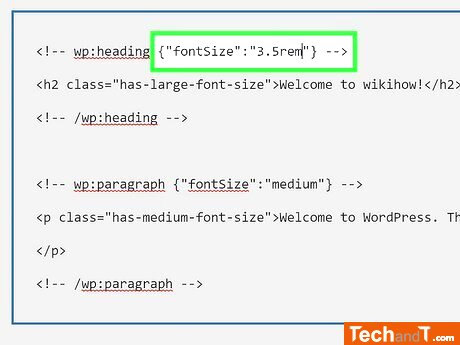
Let's now switch away from utilizing viewport height (vh) and opt for rem as our sizing unit. This example will demonstrate the font size of H1, H2, and H3 are in relation to the selected font size in the HTML element. Here is the code written out: html { font-size: 100%; } h1 { font-size: 3.5rem; } h2 { font-size: 2.75rem; } h3 { font-size: 2rem; }
TimeScale:
Approx. Time Required: 8 Minutes