

Customize Windows 11 Taskbar
Method 1:
of a Room Altering the hue of a chamber.Step 1
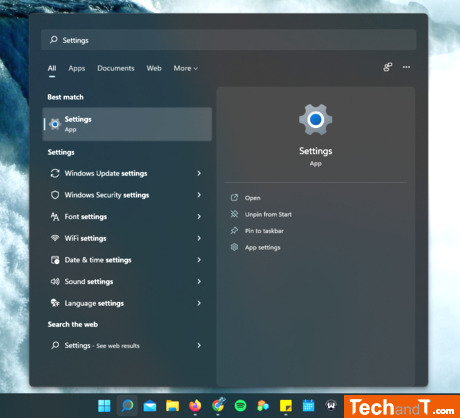
To open Settings, you have two options. You can either click on the Windows logo in the taskbar, or search for it using the icon next to it. Remember to choose the grey cog for Settings, and not Control Panel, as these are two different options with different settings.
Step 2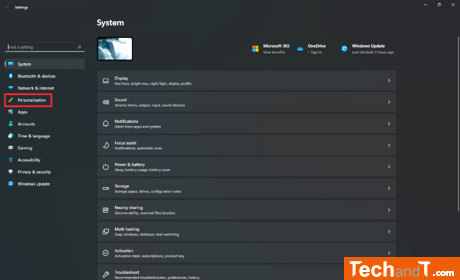
On the left side of your settings menu, you will see a paintbrush icon (Personalisation) which you should select.
Book a service online
Step 3
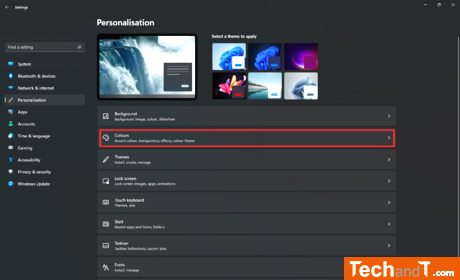
Choose 'Colours' from the list of options located second from the top.
Step 4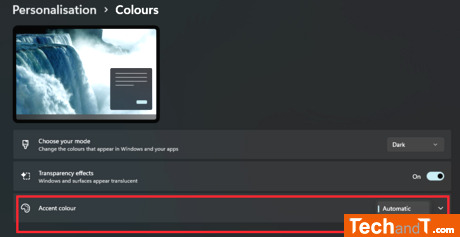
Click the drop-down arrow to the right of 'Accent Colour'. Change the option from 'Automatic' to 'Manual' and select one of the colours presented. Alternatively, pick 'Customised Colours' to create your own.
Step 5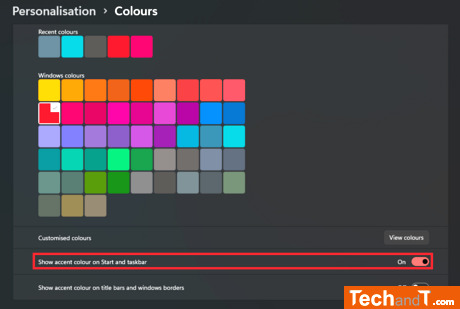
To activate the 'Show accent colour on Start and Taskbar' setting within the colour selection, your computer may momentarily slow down, but it should start working properly again in a few seconds.
TimeScale:
Approx. Time Required: 10 Minutes