

View Frame Rates
Method 1:
Steam is an online digital platform that enables users to download games. Steam is a digital service which allows people to acquire video games electronically.Step 1
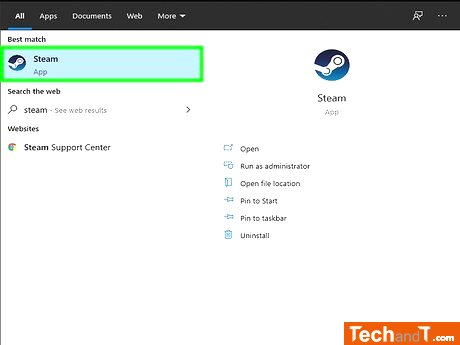
Open Steam - you can find this application in your Start Menu or the Applications folder in Finder. If you don't yet have the desktop version installed, you can download it for free from https://store.steampowered.com/about/. Once you've installed the app, you'll be able to check the frames per second (FPS) in all your Steam games and possibly some games that aren't sold through Steam. You may even be able to see the FPS when you add 3rd party games to your Steam library.
Step 2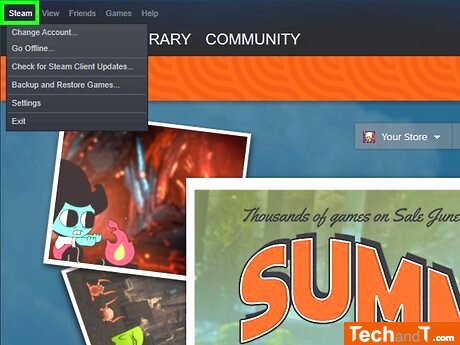
This will open the main Steam application window and you'll find the Steam tab in the upper left corner.
Book a service online
Step 3
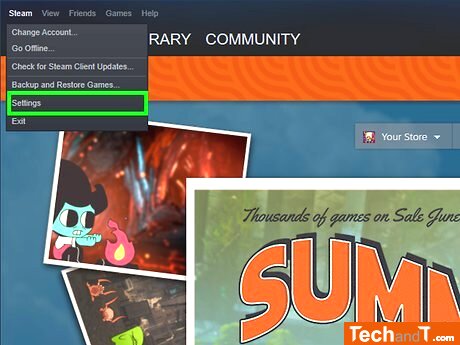
Open the Settings menu. If you've clicked the Steam tab, you will find it at the bottom of the menu. When you've clicked the icon in the taskbar or menu bar, then you will see Settings located in the middle of the menu.
Step 4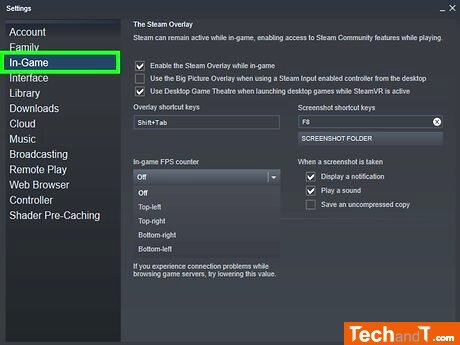
When you select In-Game on the left side of the Settings window, it will open up.
Step 5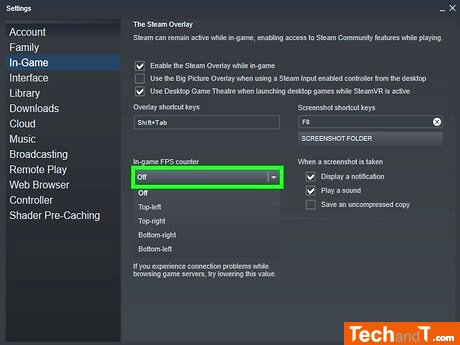
To choose the drop-down in the center of the window, click on the In-game FPS counter.
Step 6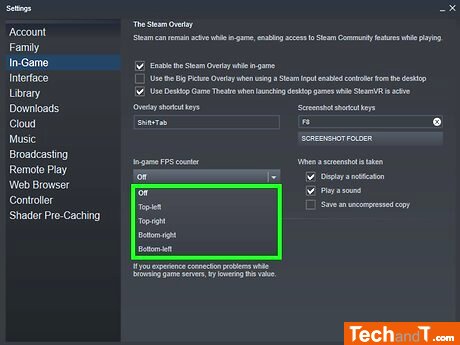
Tap to pick where the Frames Per Second count should be seen. There are four options - in the upper left corner, upper right corner, bottom left corner, and bottom right corner.
Step 7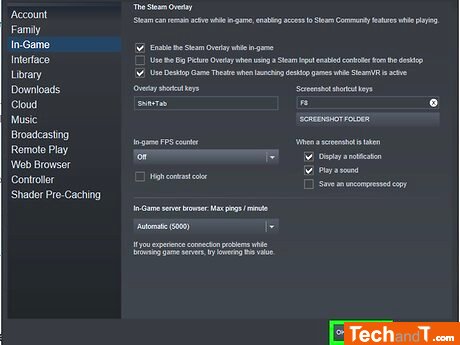
When you click OK, the Settings window will disappear.
Step 8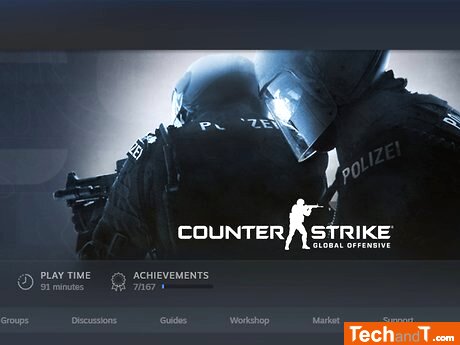
: [1] https://support.steampowered.com/kb_article.phpref=2037-QEUH-3335 After you run the game via Steam, you will observe the FPS in the designated position from before.
TimeScale:
Approx. Time Required: 16 Minutes