

Upgrade Computer BIOS Now
Method 1:
Getting the BIOS update file onto your deviceStep 1

Click the Windows logo located at the bottom-left corner of the screen to open the Start menu.
Step 2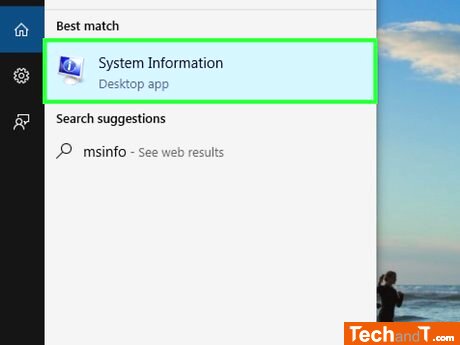
To open System Information, in the Start window, type msinfo and then select System Information from the list at the top.
Book a service online
Step 3
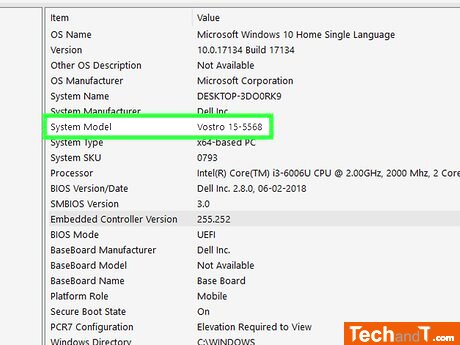
Have a look at your PC to find its model number. Near the System Model section, you will observe a combination of digits and letters; this is the exact model name of your device. Keep this detail in mind, as you may require it when searching for the BIOS update file. If your computer is custom-made, no need to do this step.
Step 4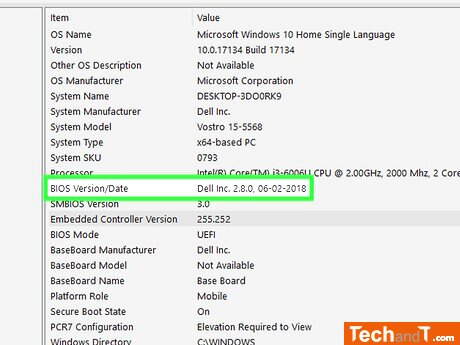
Look near the BIOS Version/Date heading to find your BIOS version number. It will be expressed as a numerical value following a period, such as Q553UB.202. If you've made your PC yourself, you will need to check the specifications of your motherboard for the version number.
Step 5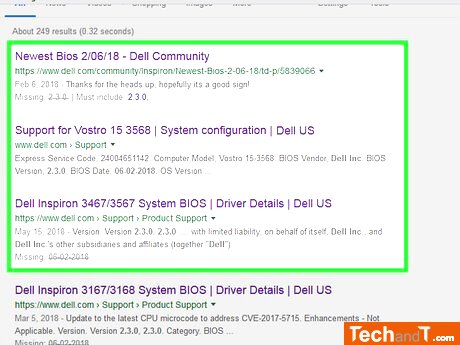
To access your BIOS manufacturer's website, it is usually best to put your computer manufacturer, model and either 'drivers' or 'BIOS' into a search engine and choose the appropriate connection. This step will differ according to your computer's maker, so you may have to pass through some of the links before you reach the appropriate one. On the other hand, if you are running a self-constructed machine, you should look for the motherboard designation in connection with 'BIOS' and 'update', and afterwards access the manufacturer's site.
Step 6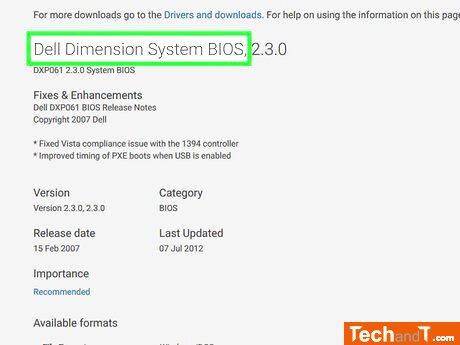
In order to locate the BIOS update file, you may need to click on certain tabs, such as Updates, Support or Downloads, or search for a BIOS heading. This may require a bit of trial and error. Once the BIOS file is located, you can continue with the process.
Step 7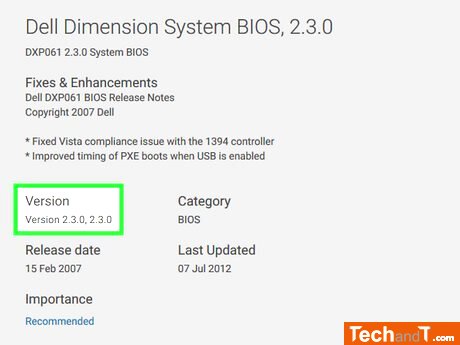
Ensure that the update file is of a higher version than your BIOS. Check the version indicated in the name of the file; If it is larger than your BIOS version number, your BIOS is outmoded and you can then proceed with the update process. If the version number matches your BIOS version number, your BIOS is current and you need not update it. Even if the current BIOS version is a whole number (for example, 301) and the file on the website is displayed with a higher decimal (for example, 301.1), the file on the website is still a higher version than that used in the BIOS.
Step 8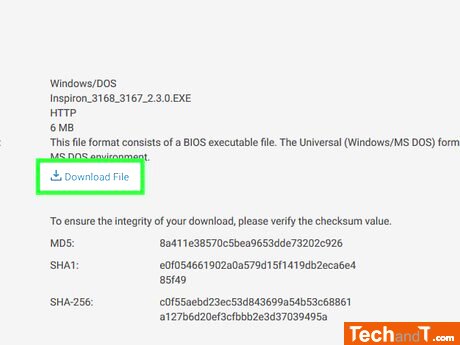
To begin the update process, locate the update file and click the link, button or icon to initiate the download. Once it has been downloaded, proceed with updating your BIOS. In some situations, it may be necessary to click the file's name to trigger the download. Typically, the update file will be placed in a ZIP folder.
TimeScale:
Approx. Time Required: 16 Minutes