
How to Change Apple ID Password
Method 1:
Navigating the Internet through a web browser.Step 1
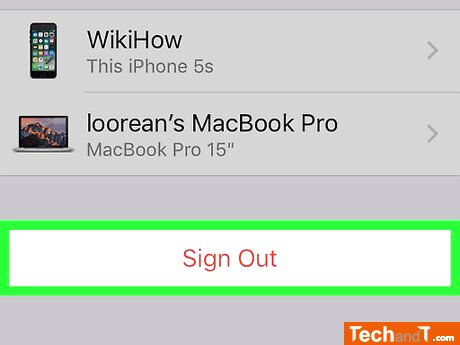
Log out of your Apple ID profile across all associated devices and services, such as iCloud and iTunes, that you have connected with your existing Apple ID.
Step 2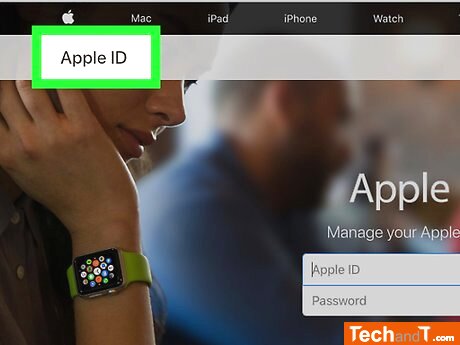
To get to the Apple ID website, you can either click on the link located on the left, or enter appleid.apple.com into the search bar of any browser connected to the internet.
Book a service online
Step 3
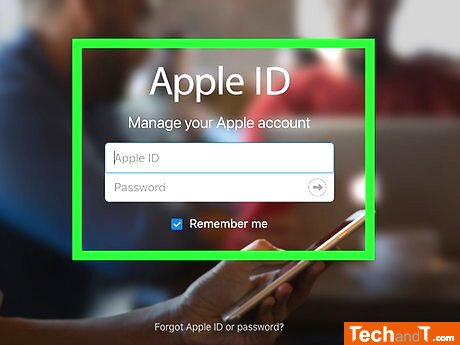
In the fields marked, enter your Apple ID and corresponding password.
Step 4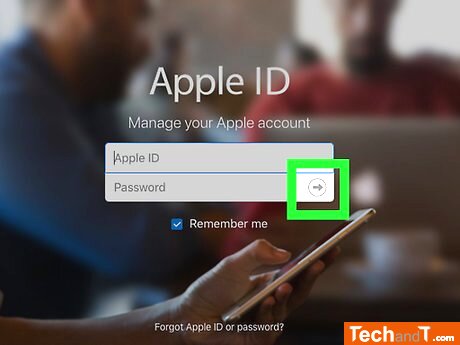
Press or tap ➲ located to the right of the Password field. If two-step authentication is enabled, select Allow on another device, and enter the six-digit code in the provided spaces.
Step 5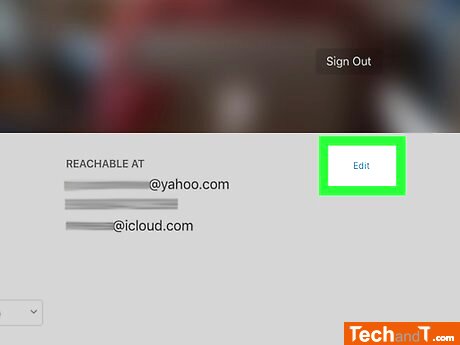
To edit your account, click or tap the blue Edit link on the right side of the screen in the Account section.
Step 6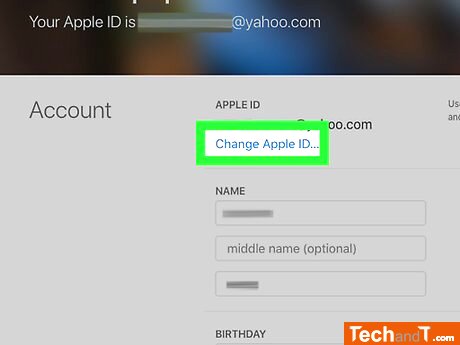
To change your email address associated with your Apple ID, go to the top of the window and locate the APPLE ID section. Beside the current email address, look for an option to Change Email Address and click or tap on it.
Step 7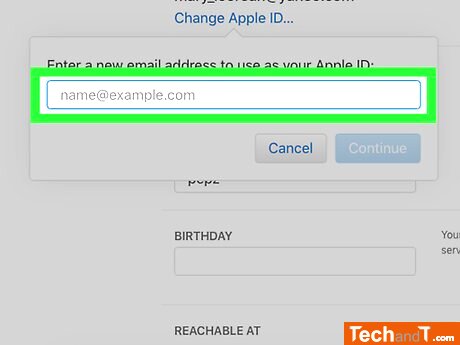
Enter an email address that is not currently associated with any Apple ID and that won't likely need to be changed in the future.
Step 8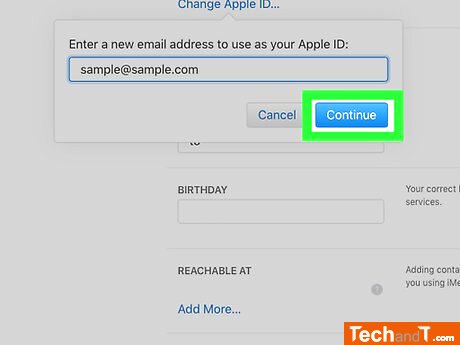
Press Continue or Next. Apple will send an email with a confirmation code to the new email address.
Step 9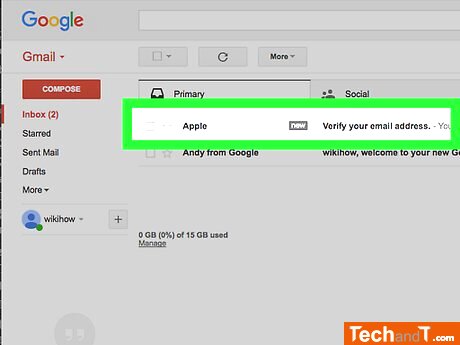
Search the inbox of your email account for the communication sent by Apple.
Step 10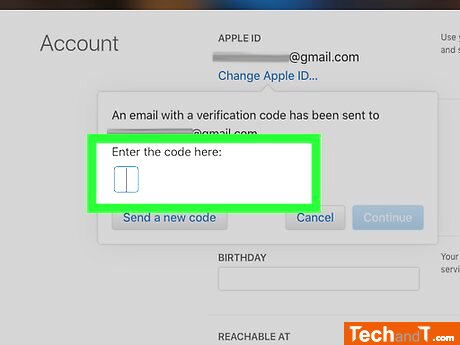
Type the code from your email into the designated boxes that appear on your browser.
Step 11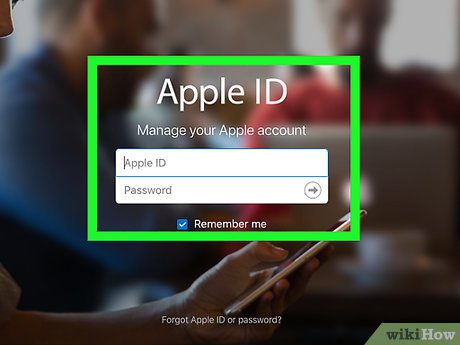
Begin by logging in to your devices and Apple services with your new Apple ID. Once logged in, you will be asked to verify your identity with two-step verification. Choose 'Allow' from another device, then enter the 6-digit code which will appear on the screen.
TimeScale:
Approx. Time Required: 22 Minutes