

Have You Been Hacked
Method 1:
Searching for malicious software on a computer or other device.Step 1
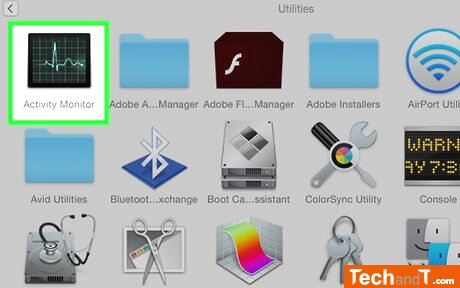
Investigate any strange behaviour from your computer as potential signs of hacking. This includes the system slowing down, constant crashing or error messages, settings being altered drastically, unfamiliar pop-ups, inappropriate advertisements appearing on websites, difficulty removing unwanted programs, suspicious emails being sent, and your external devices being powered on unexpectedly.
Step 2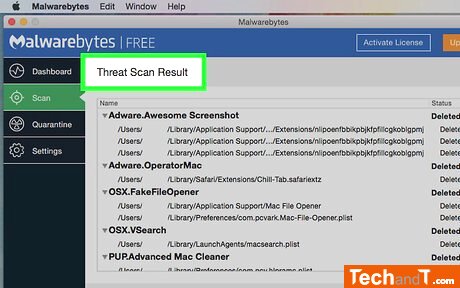
Search for other common malware varieties. Some other potential signs of a breach include: added browser toolbars, modified system or browser configurations, and a faster-than-usual battery draining of your laptop. For a thorough and up-to-date source, consult the Federal Trade Commission website.
Book a service online
Step 3
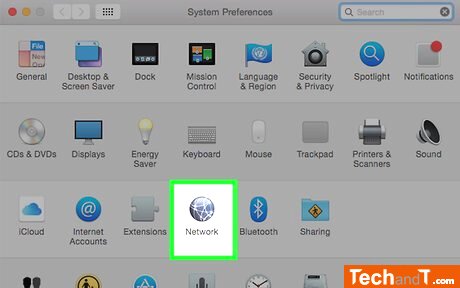
The router item is your Wi-Fi router. Using Windows and Mac computers, you can investigate if your Wi-Fi network is hosting any uninvited individuals. To do this on Windows, open Start and type in ‘view network computers and devices’ then click this choice. Once this is done, analyse the items shown to check for unfamiliar ones - the ROUTER item should be your Wi-Fi router. For Mac, open Finder or the desktop and click Go, followed by Network. To conclude the search, look over the items and identify those you do not recognize - the ‘ROUTER’ should be the device which is your Wi-Fi router.
Step 4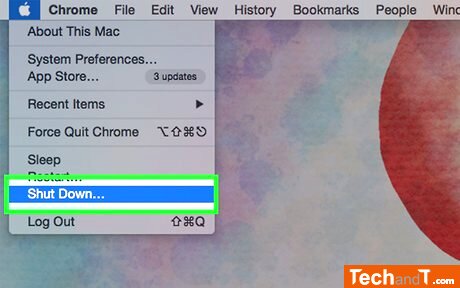
But this can be a tedious process that involves restoring your programs and documents. To shield yourself from further hacking, take steps to protect your device: update your antivirus software and restart your computer into safe mode (for Windows or Mac). Then remove any recently installed programs, scan your computer with your antivirus and restart it again. Additionally, you should steer clear from shopping and banking activity online for the time being to avoid further risks. Consult a trustworthy source like the Federal Trade Commission for up-to-date information on what to do. Lastly, if you feel that it's necessary, resetting your computer can help, however it may require restoring your stored information.
Step 5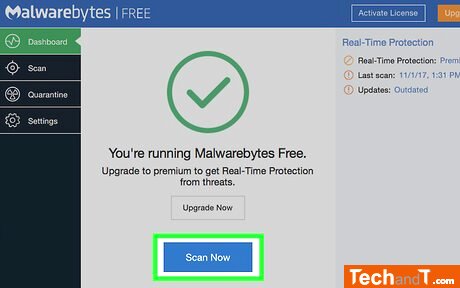
In order to help stop potential hacking in the future, take the following steps: install an antivirus program, keep your computer and its programs up to date, be wary of security warnings, and refrain from clicking links or opening unknown email attachments. Download applications and software only from trusted sources like the official program website, and use a scanner to check USB drives before use. Additionally, back up your data both to an external drive and the cloud. For more information on keeping yourself safe from hacking, use a reliable source such as the Federal Trade Commission.
Step 6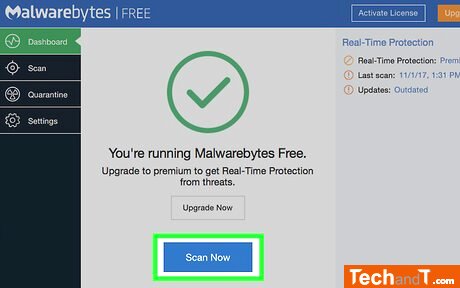
Keep an eye on hacking forums for the latest info so you know how to shield yourself from potential cyberattacks.
Step 7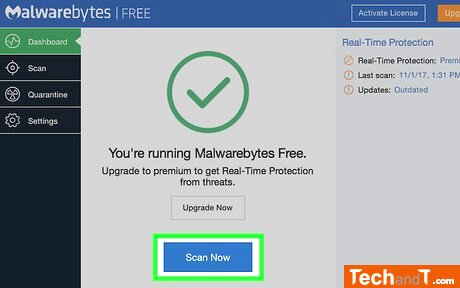
Take a look at the privacy policies for the social networks that you utilize. They should never communicate with you using any strange email address, and equally, they should never inquire about your password as genuine networks ought to possess all the pertinent information regarding your profile.
Step 8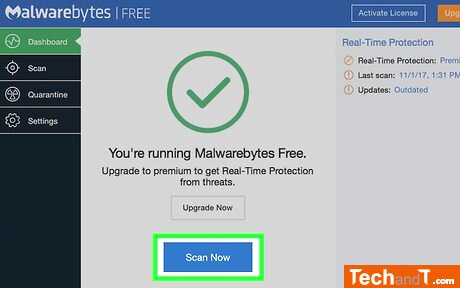
Make sure to use double authentication for all of your accounts! This will place an additional hindrance making it more difficult for someone attempting to break in.
Step 9
Reach out to the company's Support desk if you receive an erroneous email, and provide all details necessary. Do not act superstitiously; rather, investigate new hacking developments by researching on related forums and stay up-to-date with the latest methods of being hacked.
Step 10
Be sure to check the privacy policy of all the social networks you are using. No legitimate websites will contact you using any strange email addresses, and they will certainly never request your password—they should already have all the data regarding your profile.
TimeScale:
Approx. Time Required: 20 Minutes