

Adding Chrome Pin Extensions
Method 1:
Fastening and unfastening Extensions.Step 1
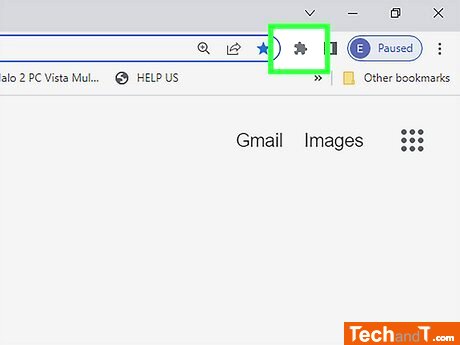
To add a new extension to Chrome, click on the puzzle piece icon located in the top right corner of the program. Doing so should add the extension to the Extensions menu on Chrome, regardless of the operating system you are using (Windows, macOS, Chromebooks). It is not possible to pin Chrome extensions to Android, iPhone, or iPad devices.
Step 2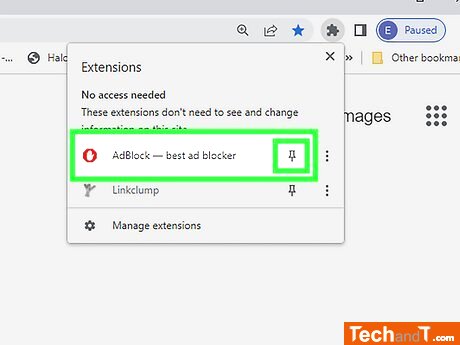
Press the pushpin icon to secure an extension. For each selection on the menu there is a specific pushpin icon. If the pushpin is not filled in blue, press the pushpin to pin that extension. Once blue, the extension's icon will be fixed to the top-right corner of Chrome.
Book a service online
Step 3
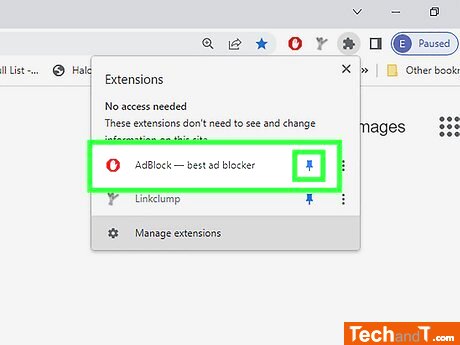
If you decide later that you'd like to have the extension icon back in your toolbar, go to the puzzle piece menu again, and click the blue pushpin next to the extension you want to pin back.
TimeScale:
Approx. Time Required: 6 Minutes