

Cancelling Acorns Account
Method 1:
Employing a PC or Android device.Step 1
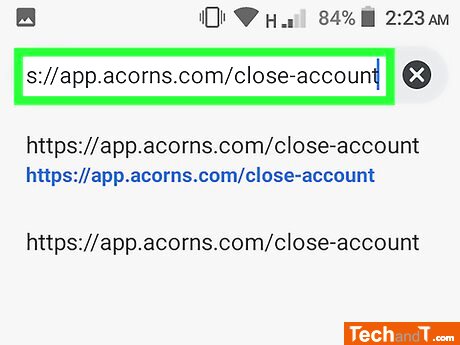
You can cancel your Acorns account either by logging in to their website on a computer or Android device, or by using the Acorns mobile app on an iPhone or iPad. For instructions on how to do this through the App, see 'Using the iPhone/iPad Mobile App'.
Step 2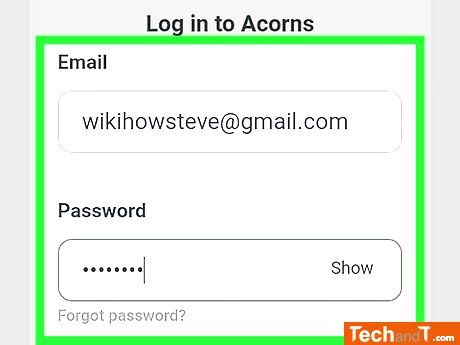
If you're not automatically logged in, please provide your email address and password and click the Log In button to gain access to your account.
Book a service online
Step 3
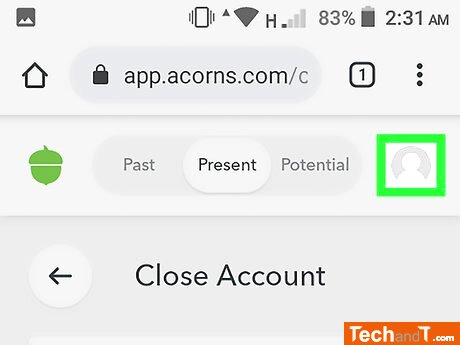
Go to the top-right corner of the page and click the image of your profile. A list of options will be revealed.
Step 4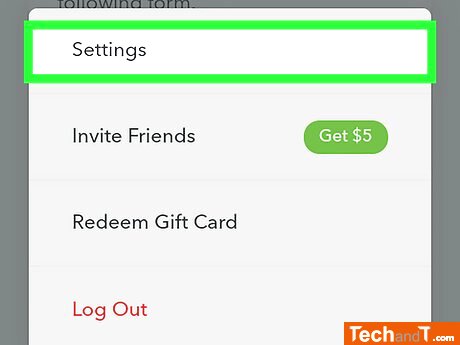
At the top of the menu, click on Settings.
Step 5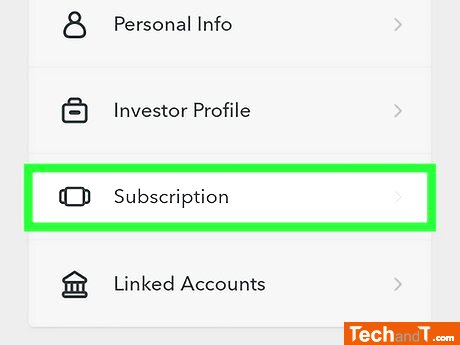
To access your subscriptions, go to the Personal or Personal Settings section, and then click the Subscription link.
Step 6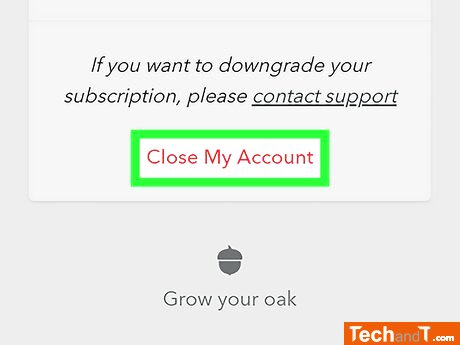
To close a standard (Core) account, look for the red Close My Account link in the bottom-right corner and click it. You'll get a confirmation message once it's complete. If your account has Later or Spend upgrades, click the Contact Support link instead. Select the 'Close My Account' option from the What can we help you with menu, then fill in the form requesting to cancel your account. An Acorns representative will contact you via email within 1 or 2 business days.
Step 7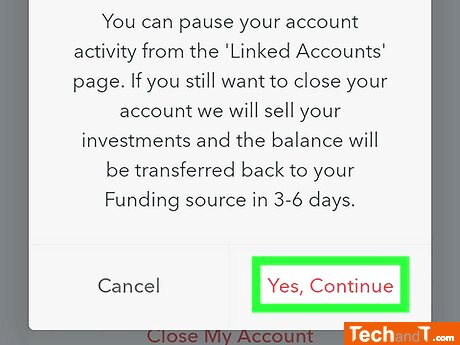
Press Yes, Continue to close your account. Depending upon the current amount in it and your standing, you may need to authenticate your bank information or payment information to end your subscription. Your initial funding source should get any money left in your account within three to six business days.
TimeScale:
Approx. Time Required: 14 Minutes