

Searching Using Images
Method 1:
Searching for images with Google on a mobile phone or tablet.Step 1
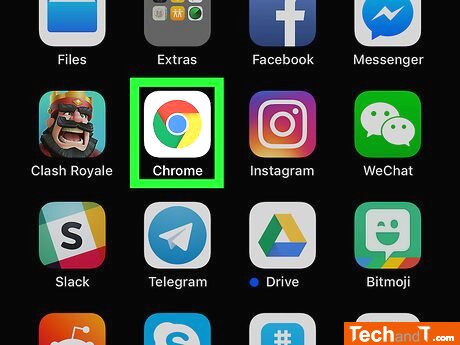
To search for a specific image using Google Chrome, you must first download the browser from either the App Store or Play Store. Once you have the Google Chrome app installed, open it up and access the Google Image Search tool. If you have the image you are looking for stored on your device, you can also use http://reverse.photos to upload it and find matches quickly.
Step 2
Search for an image by typing keywords into the search bar on a web page, or go directly to the desired website to find what you are looking for.
Book a service online
Step 3

: [1] https://support.apple.com/guide/ipad/take-and-mark-up-screenshots-ipad100403/ipados Press and hold down on the image. A pop-up menu will show up.
Step 4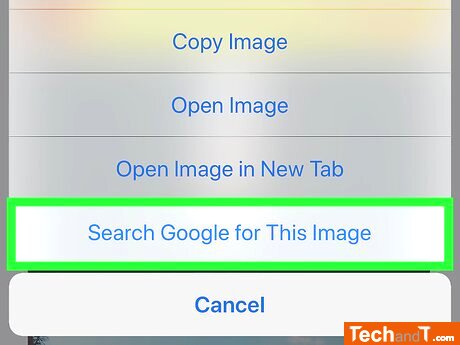
To search for an image on Google, tap and hold the preview of the picture you want to search for. This will open a new tab on Chrome which shows the Google Image Search results for the image. Note that this option will not appear if you just tap on the preview of a photo from a Google search. First, expand the preview by clicking on it, then tap and hold to search the image on Google.
Step 5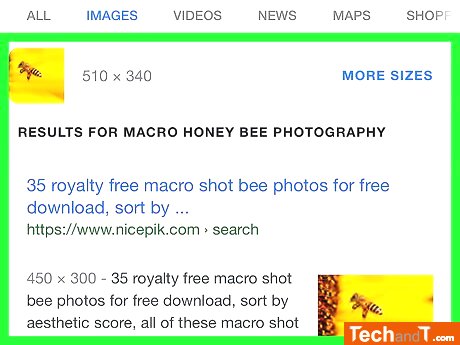
Look through the results. Above the page, you'll see the particulars of the image, while underneath you'll notice all the possible related images. In case the exact image isn't visible, pictures that resemble it will be visible.
TimeScale:
Approx. Time Required: 10 Minutes