

Remove Unwanted Toolbars
Method 1:
is a widely used web browser. Google Chrome is a web browser used by many people around the world.Step 1
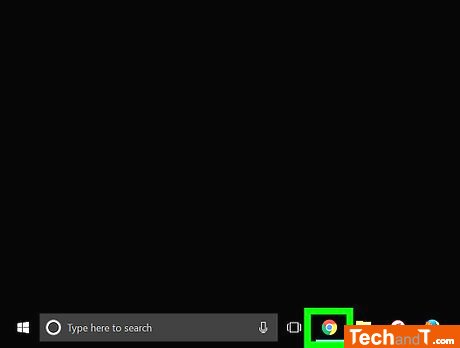
Launch Google Chrome. There is a spherical icon with the four colours of red, yellow, green and blue.
Step 2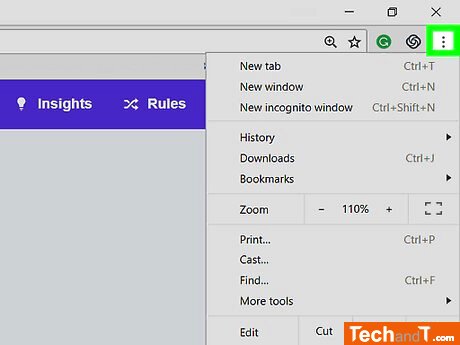
Press the ⋮ icon located at the upper right of the Chrome window. Doing this will cause a list to appear.
Book a service online
Step 3
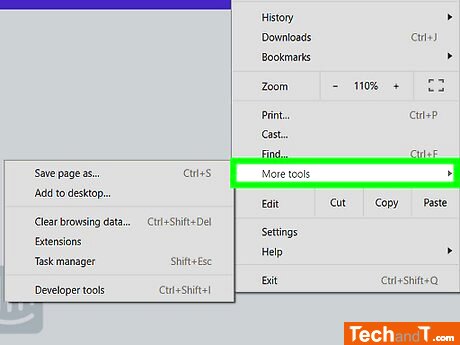
At the bottom of the drop-down menu, you'll find the 'More tools' option. When clicked, this will open an additional menu.
Step 4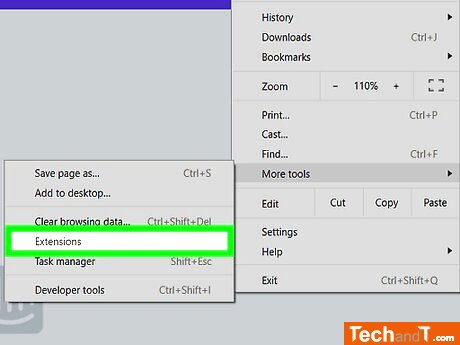
To find the Extensions page, click on the Extensions option from the pop-out menu.
Step 5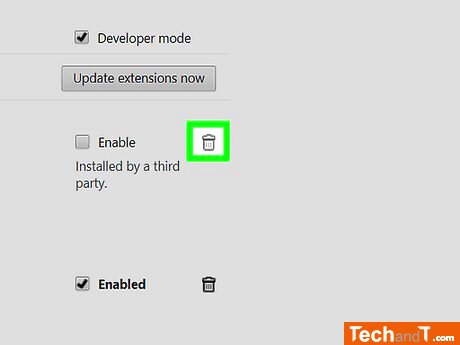
To uninstall, click the trash can icon which is located to the right of the toolbar.
Step 6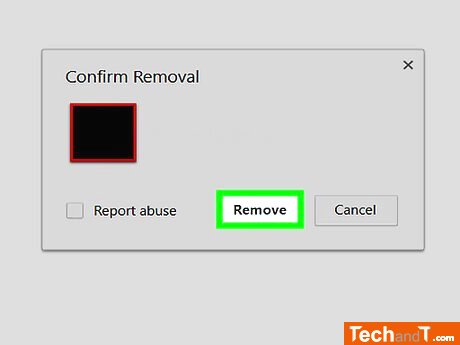
When the prompt appears, click 'Remove' to delete the extension from Google Chrome.
Step 7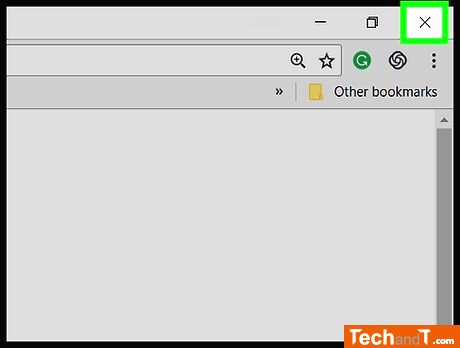
Restart Google Chrome. After the browser has reloaded, the toolbar should no longer be visible.
TimeScale:
Approx. Time Required: 14 Minutes