

Burning a CD from Amazon Downloads
Method 1:
Music Obtaining Your Tracks from Amazon Music Changing the way downloads of songs from Amazon Music go aboutStep 1
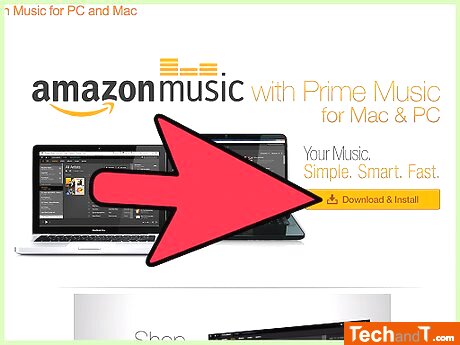
To install Amazon Music, go to the Amazon Music download page, locate the orange Download and install button and click it. The app's installer will be downloaded and will work for both PC and Mac devices. Then, execute the installer and follow the directions to complete the installation.
Step 2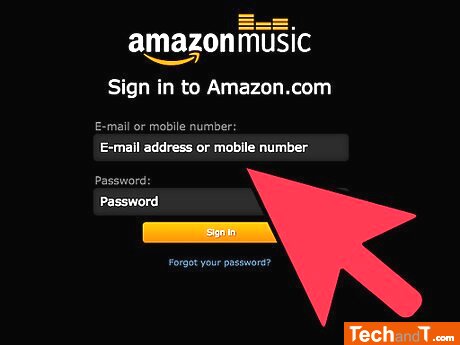
To gain access to your Amazon account, open the login page. Enter your Amazon credentials into the required boxes, and then select 'Sign in'. If you don't already have an Amazon profile, you can set one up for no cost. All you need is your name, an email, and a password.
Book a service online
Step 3
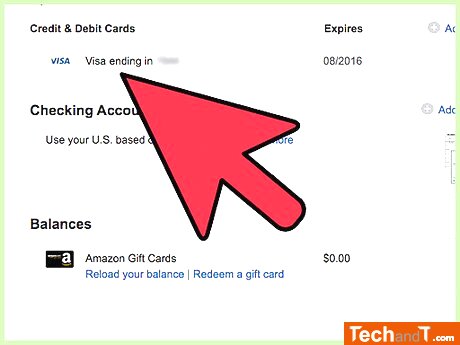
If you haven't yet entered billing information on your Amazon account, you will be asked to when you log into the Amazon Music app. You can insert your credit/debit card information in the first field, and your billing address in the second field. When you are done, click the button labelled Continue at the top to move forward.
Step 4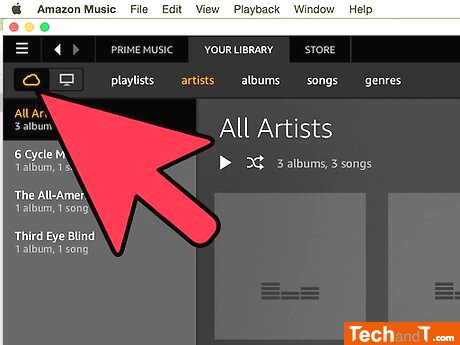
Access your music library. By default, this will be from the Amazon cloud, which will feature all the songs you've acquired from their website. In case you're not logged into the cloud library, just press the cloud symbol in the top left corner.
Step 5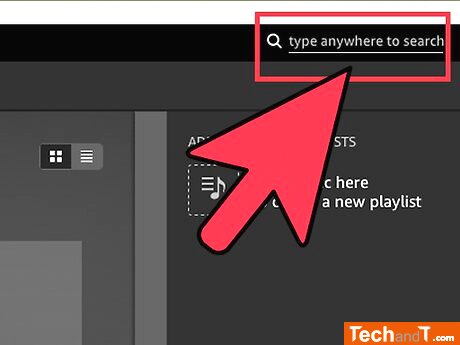
If you are looking for a particular song and don't want to scroll through your entire music list, you can type in the name in the search bar in the upper right corner. Alternatively, you can select Store from the top window to browse through fresh releases, best sellers, and highlighted albums and songs. After you find the track you desire, simply click Buy to add it to your collection.
Step 6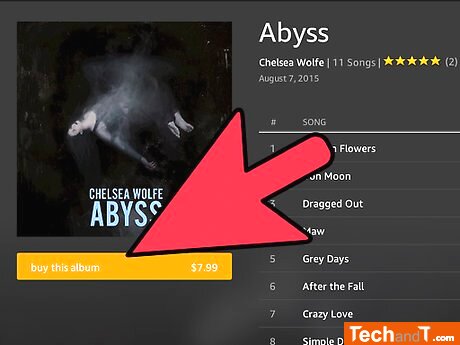
Click the Download button on the info page to save the song to your device. If you want to download multiple songs, press and hold the ⇧ Shift key while selecting the first and last song of your desired list.
TimeScale:
Approx. Time Required: 12 Minutes