

Adding Chrome Pinned Extensions
Method 1:
Attaching and detaching extensions.Step 1
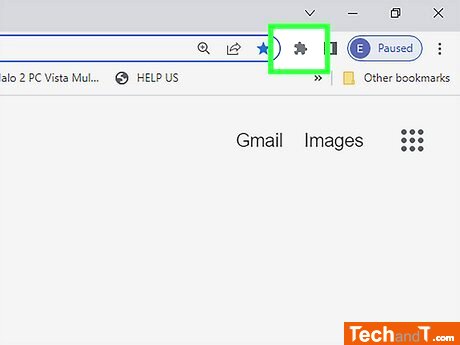
In order to add a new extension to your Google Chrome, locate the puzzle piece icon situated in the upper-right portion of your Chrome window. Keeping the same procedure for Windows, macOS, and Chromebooks, you can pin a Chrome extension; however, it is not possible to do this with an Android, iPhone, or iPad.
Step 2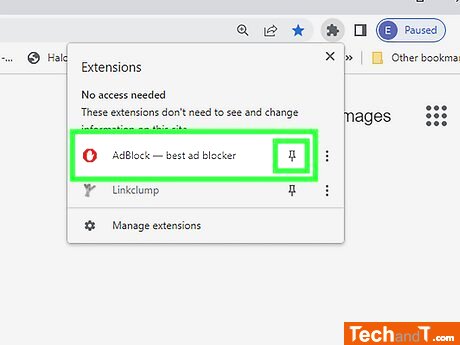
To pin an extension to the top-right corner of Chrome, locate the extension's pushpin icon on the menu. If it's not filled in blue, click the pushpin to activate it. Once the pushpin is blue, the extension will be permanently pinned.
Book a service online
Step 3
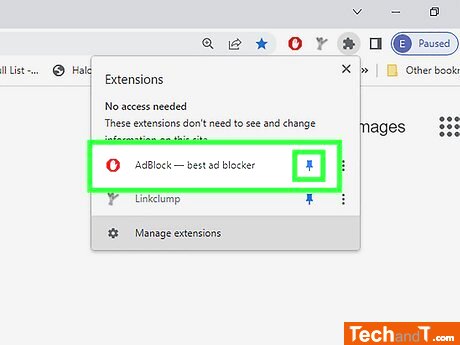
If you decide you want the icon back on your toolbar, just click the puzzle piece menu, then click the gray pushpin next to the extension you want to pin.
TimeScale:
Approx. Time Required: 6 Minutes