

Using Memes on Facebook
Method 1:
Incorporating Memes into your Social Media PostsStep 1
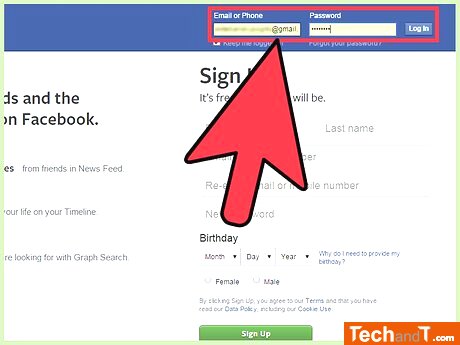
Go to the Facebook website and enter the username or registered email address associated with your account along with the password in the fields given at the top right corner. Click the Log in option to proceed.
Step 2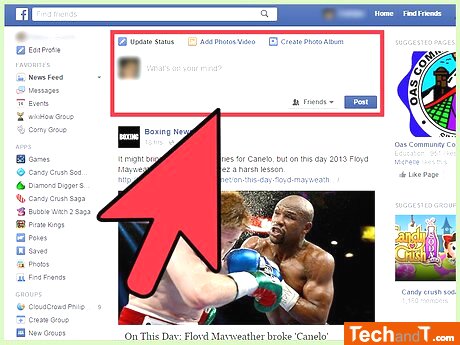
To leave a post, click into the box and type your communication. To post a new status on your Facebook News Feed and Timeline, click into the Update Status box that is at the top of the page, then type your message.
Book a service online
Step 3
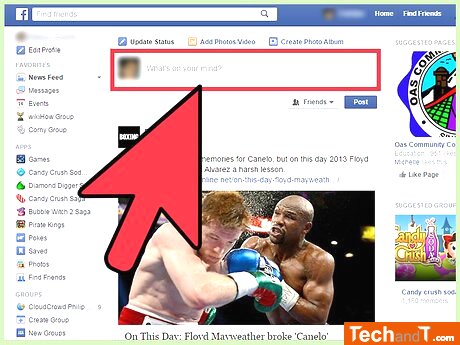
If you would like to post your opinion on a meme, type it into the Update Status box. Otherwise, it is not needed.
Step 4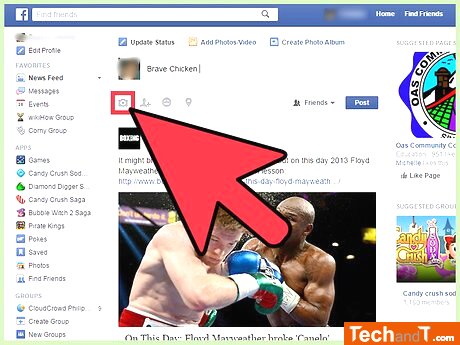
To upload the meme, click the camera icon located at the left side of the box. This will bring up a file explorer window that you can use to find and select the meme image on your computer. After you have selected the file, click 'Open' - the upload will start and a progress bar should show the status. The amount of time it takes will depend on the size of the file and your connection speed, but it should not exceed 25MB and must be a JPEG, BMP, PNG, GIF, or TIFF.
Step 5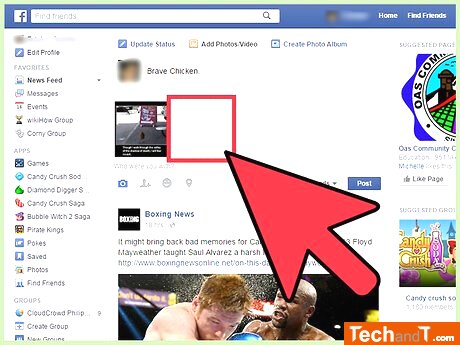
If you want to include more memes in your upload, click on the + next to the preview and a file explorer will open to select the additional ones. There is no limit to the number of memes you can upload at the same time, however the total size of all memes should not be more than 25MB.
Step 6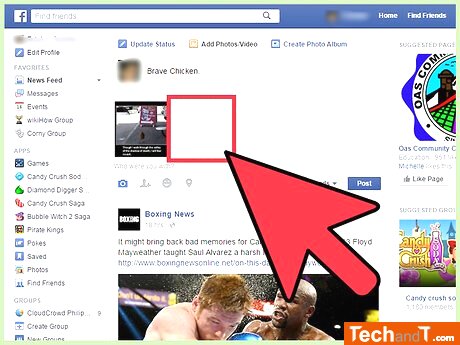
Once you have completed creating the meme(s), hit the 'Post' button located right beside the Status Update box to share it.
TimeScale:
Approx. Time Required: 12 Minutes